Parental controls
Parental Controls Not Working? Check the Setup First
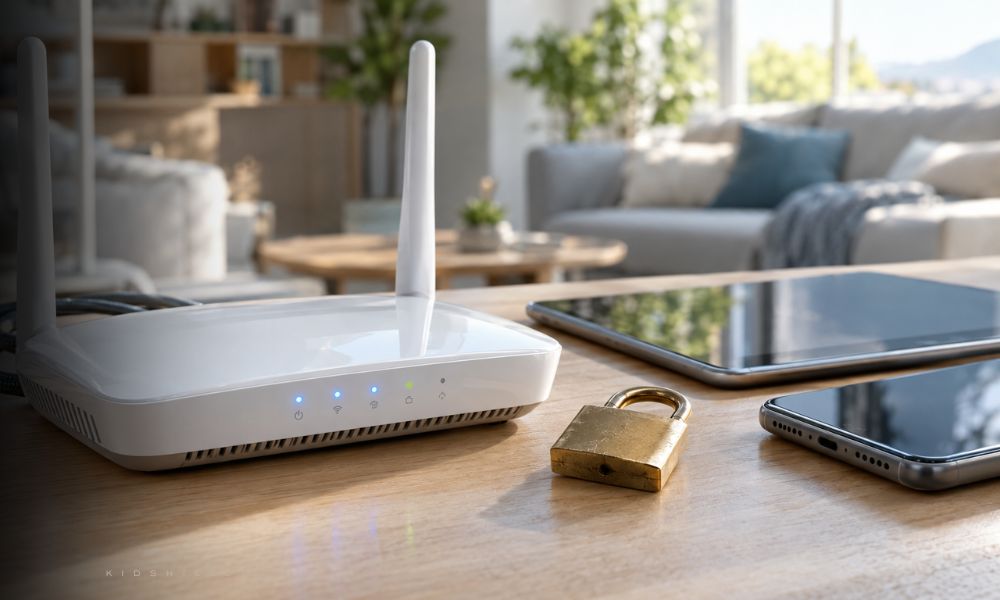
Why might parental controls fail to apply a rule?
The rule may cover a different account, device, schedule, or feature than expected. Check documented coverage, permissions, connectivity, and updates. Test a harmless, specific behavior with your child and use provider support before adding overlapping tools.
Key takeaways
Step 1
Separate blocking, reporting, and purchase approval.
Step 2
Check which accounts and devices the rule covers.
Step 3
Use harmless tests and official support tools.
Step 4
Agree on how your child can report a problem.
Affiliate disclosure: We may earn a commission from qualifying purchases through our Bark link, at no extra cost to you. No tool guarantees a child’s safety.
Define the result you expected
You set a rule, but an app remains available or you receive no alert. Write down the result you expected before buying another tool. Blocking content, limiting time, managing purchases, and reporting activity are different functions.
Use a testable statement such as “This app should be unavailable during our agreed bedtime.” Read the provider’s current description for your device and plan. Keep the test harmless. Do not search for dangerous content or send abusive messages to see whether a product reacts. The FTC’s cell-phone guidance for families discusses controls as part of a broader safety routine.
Check account and device coverage
Confirm which child account is signed in and which devices the setup covers. Include spare tablets, shared computers, consoles, and browser access where relevant. A rule applied to one account may not govern another.
Review the time zone, schedule, software version, permissions, and connection requirements in the provider’s help materials. Our app-permission guide helps structure that check. If a school manages the device, ask IT which additional controls you can use without disrupting required services. Avoid changing managed settings by trial and error.

Investigate alerts without assuming silence means safety
Check the parent account’s notification settings and contact details. Read whether the product checks information on a schedule or relies on a connected application. Use an official test feature if available. Record the device, version, expected result, and actual result when you contact support.
Share only the information support needs, removing private child messages where possible. Do not stack several products with overlapping functions before understanding the gap. The FTC’s protecting kids online resources cover family practices that complement technical settings.
Agree on what happens when a rule fails
Tell your child how to report a blocked school resource or a game that remains available when it should not. Provide a way to request a change. Assuming every mismatch is deliberate evasion can keep you from finding an ordinary configuration problem.
Combine settings with rules about contacts, downloads, spending, and asking for help. Our first-phone decision guide can help you define those expectations. Review the setup after a new device, account, or major update. If you consider another product, compare its documented features with the specific need you identified instead of expecting it to eliminate risk.
A common question
Does no alert mean nothing concerning happened?
No. Alerts depend on the product’s coverage, configuration, and operation. Keep regular conversations and a way to ask for help alongside technical controls.
Keep building your family’s plan
Start with our first-phone decision guide, then work through the first-phone setup checklist. For another practical next step, read deleting an app is not deleting the account.
Official resources linked in this article were checked October 12, 2026. Features and reporting processes can change. Australian reporting services have their own eligibility rules; use local services where appropriate.
Choose controls around a clear family need.
If you are considering a managed phone, compare Bark Phone’s current options with the needs you identified here.
- Review the controls your family needs.
- Check device, service, and plan requirements.
- Agree on boundaries together before setup.