Purchases & accounts
Unexpected In-App Charges: A Parent’s Purchase Plan
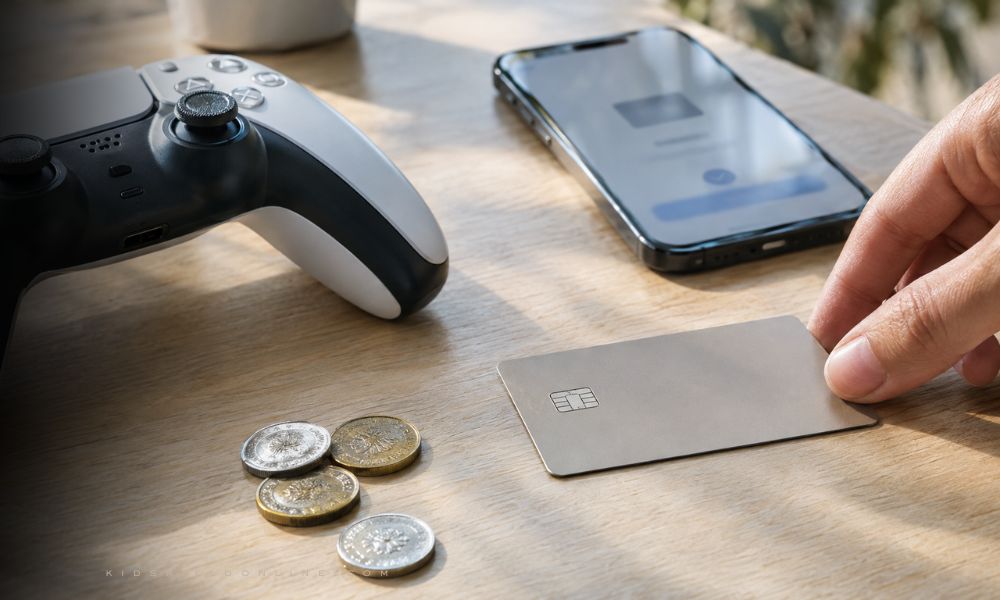
How can I stop unexpected purchases on my child’s device?
Identify the account and payment route, review subscriptions, and enable applicable purchase approvals. Keep adult approval credentials private. Check each store or website separately and confirm cancellation independently of any refund request.
Key takeaways
Step 1
Start with the receipt and purchasing account.
Step 2
Treat cancellation and refunds as separate tasks.
Step 3
Check stores, websites, and consoles separately.
Step 4
Agree on a spending rule before the next game.
Affiliate disclosure: We may earn a commission from qualifying purchases through our Bark link, at no extra cost to you. No tool guarantees a child’s safety.
Trace the transaction before changing settings
A free game can offer subscriptions, virtual currency, and upgrades. Open purchase history through the official store or provider. Identify the item, account, payment method, and whether the charge repeats. Ask your child what they saw on screen without assuming they understood the price.
If nobody recognizes the transaction, contact the provider or payment issuer through a known channel. Do not use a number in an unsolicited message about the charge. Keep the receipt and note which account the provider identifies; the app on your child’s screen may not tell you who handles billing.
Separate refunds from cancellation
Use the seller’s official refund process when appropriate. Approval depends on its policies and the circumstances, so avoid promising your child that the money will come back. Save the case reference and any response.
Review renewal settings separately. Deleting an app does not necessarily end a subscription, and requesting a refund does not guarantee cancellation. Confirm the status and end date in the billing account. Write down any follow-up date rather than relying on a reminder inside an app you intend to remove.
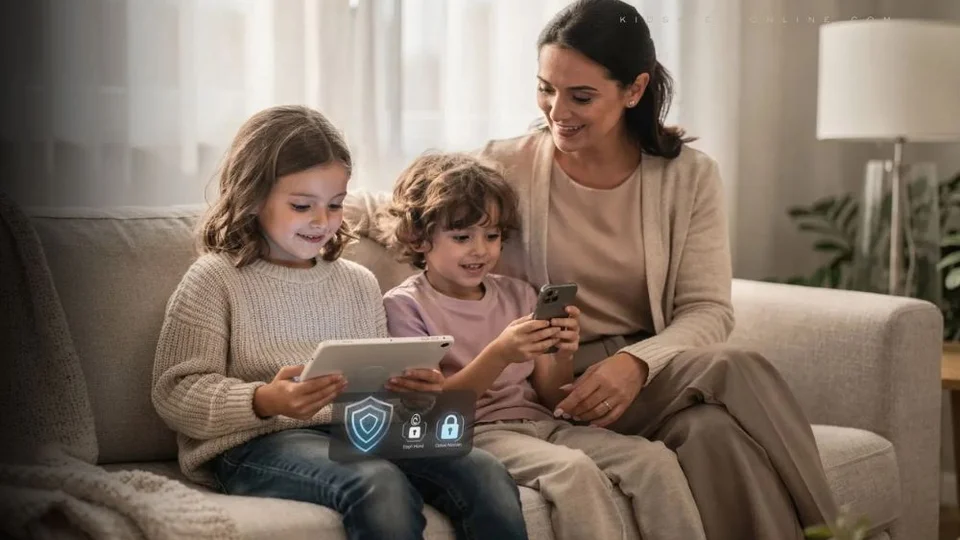
Check each payment route
Apple’s Ask to Buy instructions explain approvals for supported family purchases. Google provides separate instructions for purchase approvals on Google Play. Coverage depends on account settings and purchase type; check website and console purchases separately.
Keep adult approval credentials private and review saved payment methods. Test a harmless free-download request where supported rather than buying something to test a restriction. Discuss fake rewards and account scams too: a spending limit will not teach a child how to recognize a fraudulent login request.
Give your child a rule they can use
Agree on a budget, which adult approves spending, and whether subscriptions are allowed. Show the cash equivalent of an item instead of discussing only coins or gems. Include gifts and limited-time offers in the conversation.
Ask your child to pause when someone requests a payment code or asks them to move to another site for a reward. Review gaming contacts and privacy settings as part of that discussion. Check purchase history together after adding a new game, and keep receipts accessible so a renewal does not surprise the family.
A common question
Will deleting a game cancel its subscription?
Not necessarily. Check the account or store that handles billing, cancel through its official process, and confirm the subscription status and end date.
Keep building your family’s plan
Start with our first-phone decision guide, then work through the first-phone setup checklist. For another practical next step, read smart toys and bedroom speakers: a privacy checklist.
Official resources linked in this article were checked October 12, 2026. Features and reporting processes can change. Australian reporting services have their own eligibility rules; use local services where appropriate.
Make purchase boundaries part of the phone agreement.
If you are considering a managed phone, compare Bark Phone’s current options with the needs you identified here.
- Review the controls your family needs.
- Check device, service, and plan requirements.
- Agree on boundaries together before setup.